


License & Registration
BandiView License Policy
How to register BandiView
How to troubleshoot when I can’t register BandiView
How to troubleshoot "The product has been registered on too many devices."
BandiView Edition Comparison
Features & Technical Terms
BandiView shortcut keys
How to customize shortcuts
Command Line Parameters
Thumbnail preview in File Explorer (psd, clip, ...)
Webtoon View Mode
How to group RAW and JPG files as a single image
Photo folder
ICC profile
How to configure BandiView's video output
How to export and import BandiView settings
Supported BandiView File Formats
How to view CLIP STUDIO PAINT files (.clip) with BandiView
How to view PSD files (.psd) with BandiView
How to view SVG files (.svg) with BandiView
How to view HEIC and HEIF files with BandiView
BandiView for HDR Images
BandiView HDR support
How to turn on HDR settings in Windows
When HDR images do not look like HDR
Sample files for HDR support
The Complete Guide to Ultra HDR Jpeg
BandiView Image Converter
Sharp YUV conversion for WebP images
Tips and Tricks
How to make BandiView auto-run a slideshow
Thumbnail preview in File Explorer
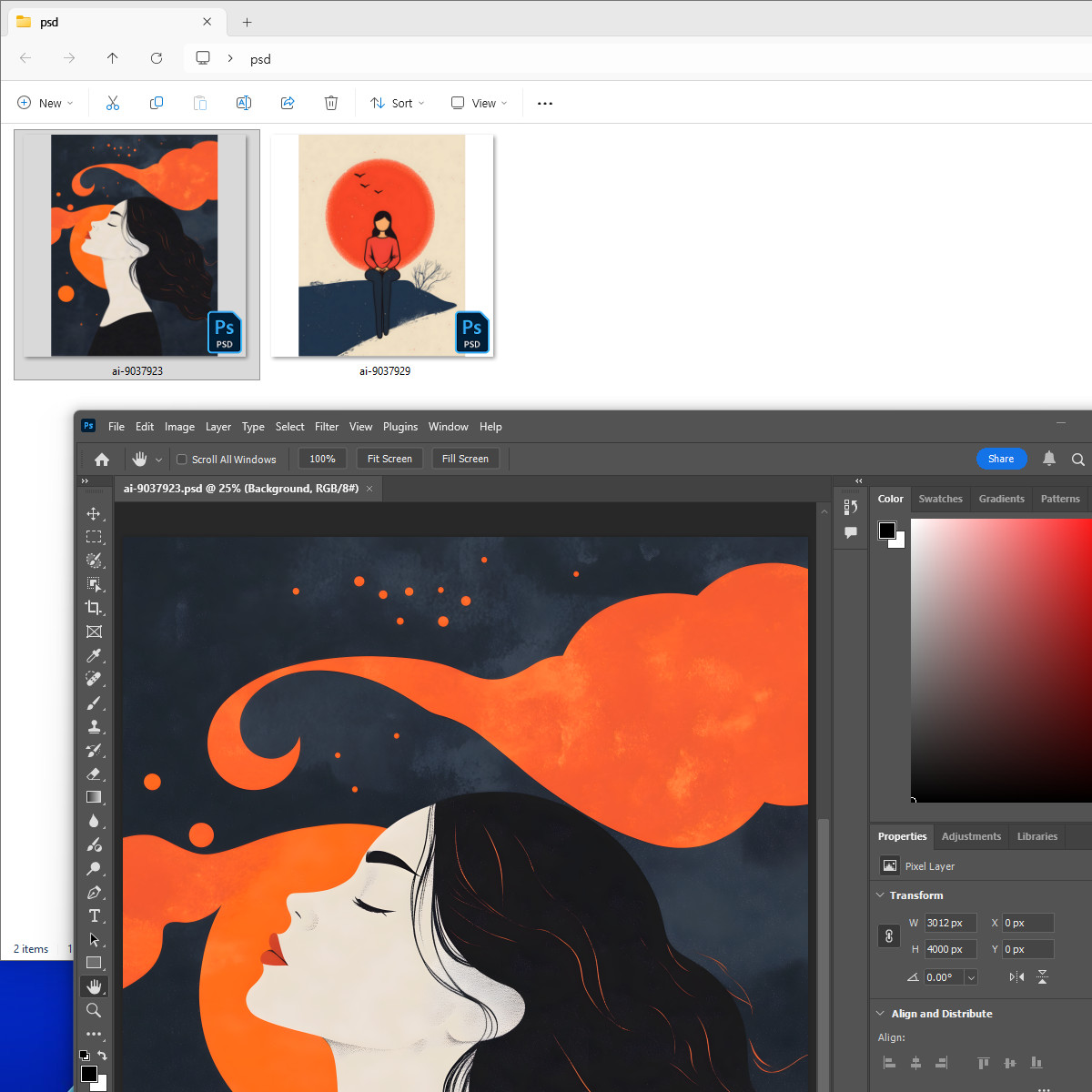
BandiView enables thumbnail previews in File Explorer for the following image formats which are not natively supported by Windows: PSD, PSB, CLIP, EXR, SVG
To enable this feature, go to the app's Configuration (F5) > Context Menu, and select the filename extensions for which you want to enable thumbnail support.
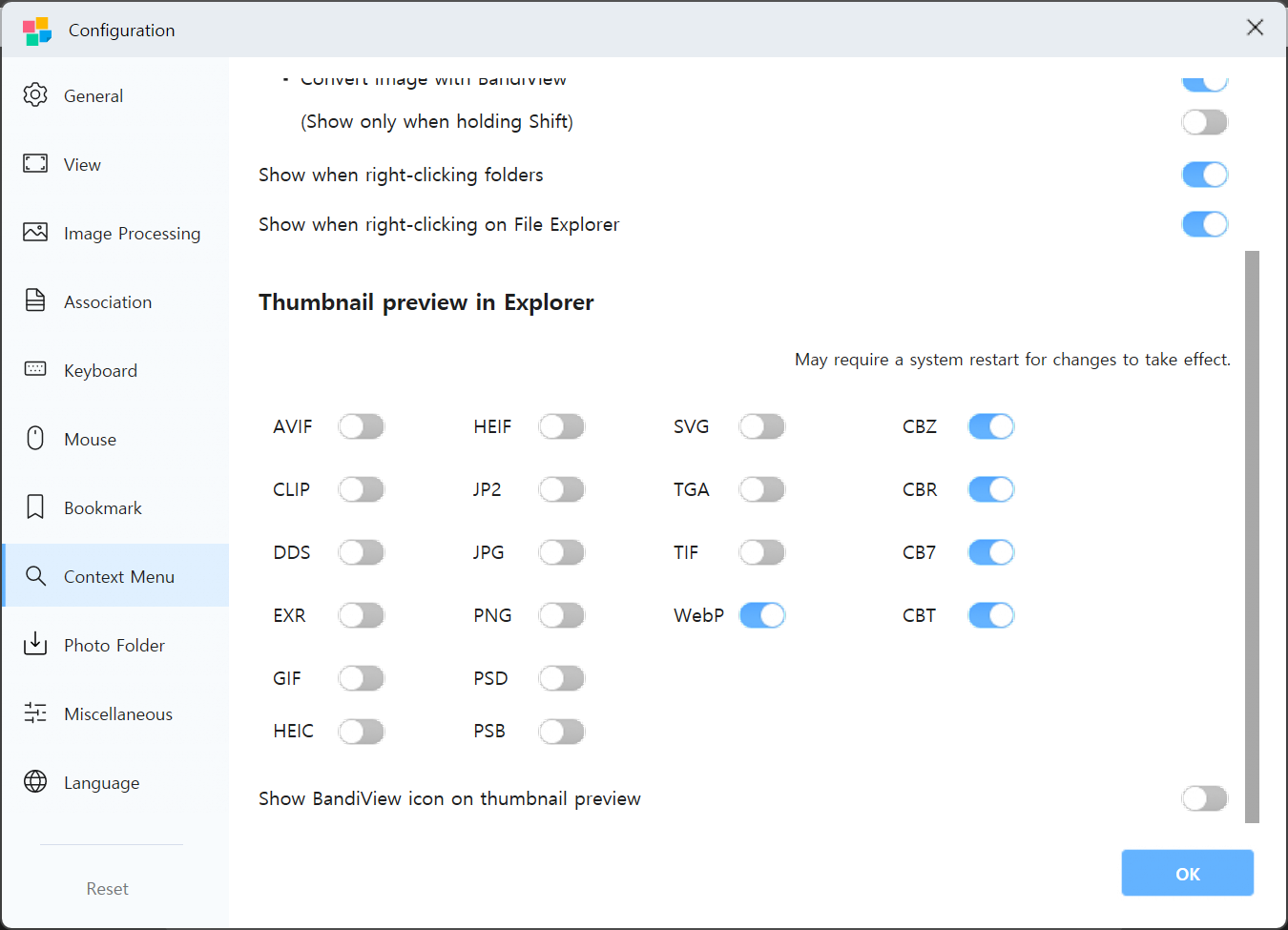
If thumbnails are not displayed
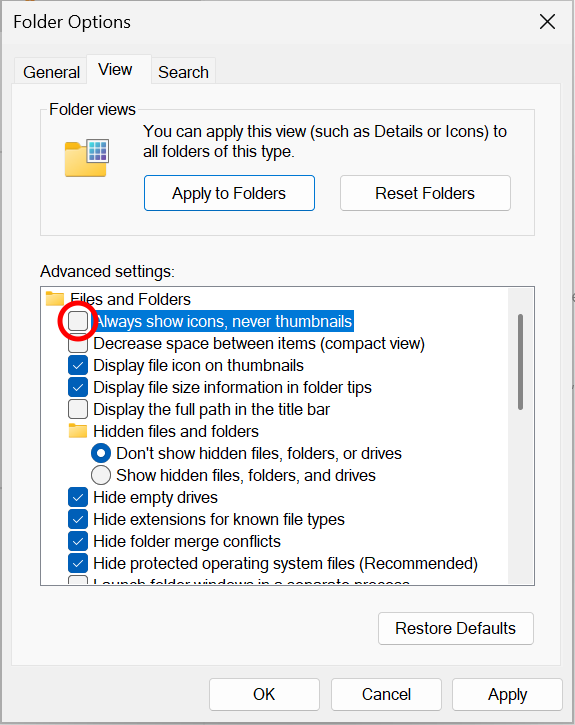
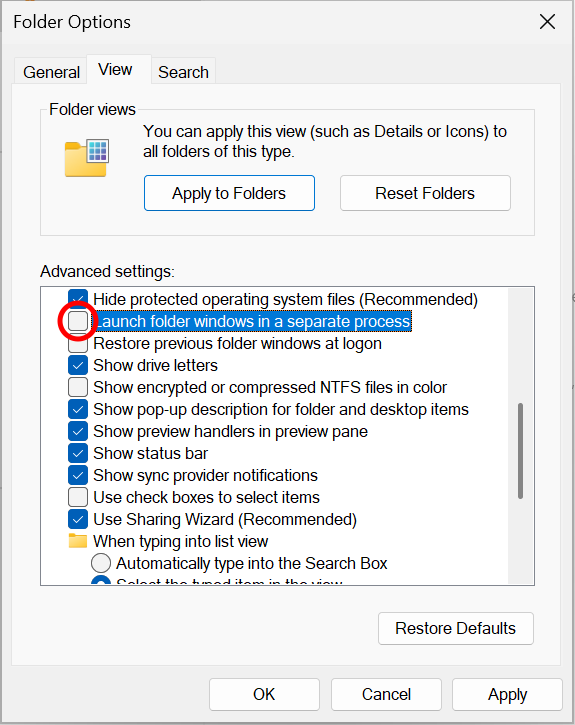
If thumbnail preview still do not appear in File Explorer after enabling the feature, try the following steps:
- In Folder Options of File Explorer, disable "Always show icons, never thumbnails."
- Also in Folder Options, disable "Launch folder windows in a separate process."
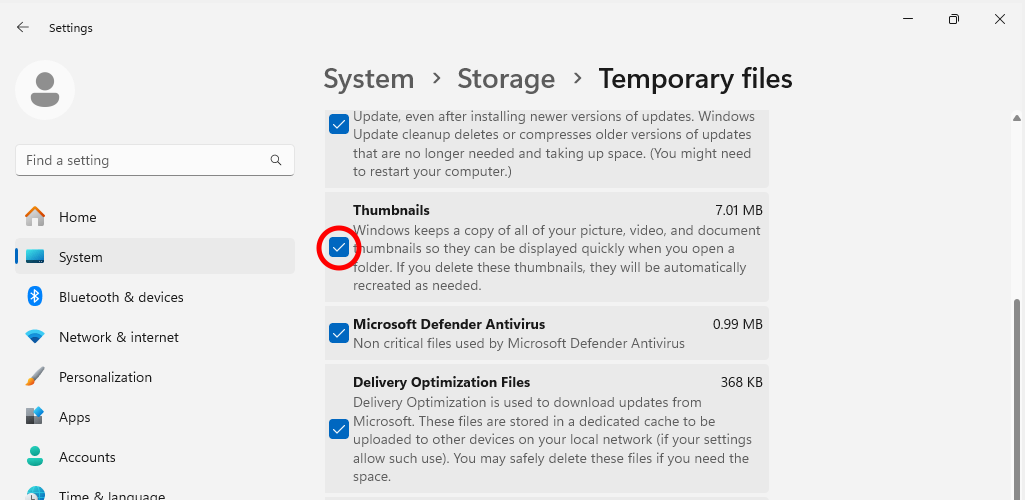
- Go to Windows Settings > System > Storage > Temporary files, and delete Thumbnails to clear the thumbnail cache.
Other things to try
If the above steps fail to fix the issues, try the following:
- Completely uninstall BandiView, restart your computer, and install BandiView again.
- Thumbnails are cached in File Explorer. Make a copy of an existing image file and check whether the same issue persists with the new copy.
- If files in a cloud storage (such as Google Drive or Dropbox) is set to online-only, the thumbnails cannot be displayed. Set the folder to "Make available offline" or disable the On-demand Sync feature in the client settings.